
Claude Accounts
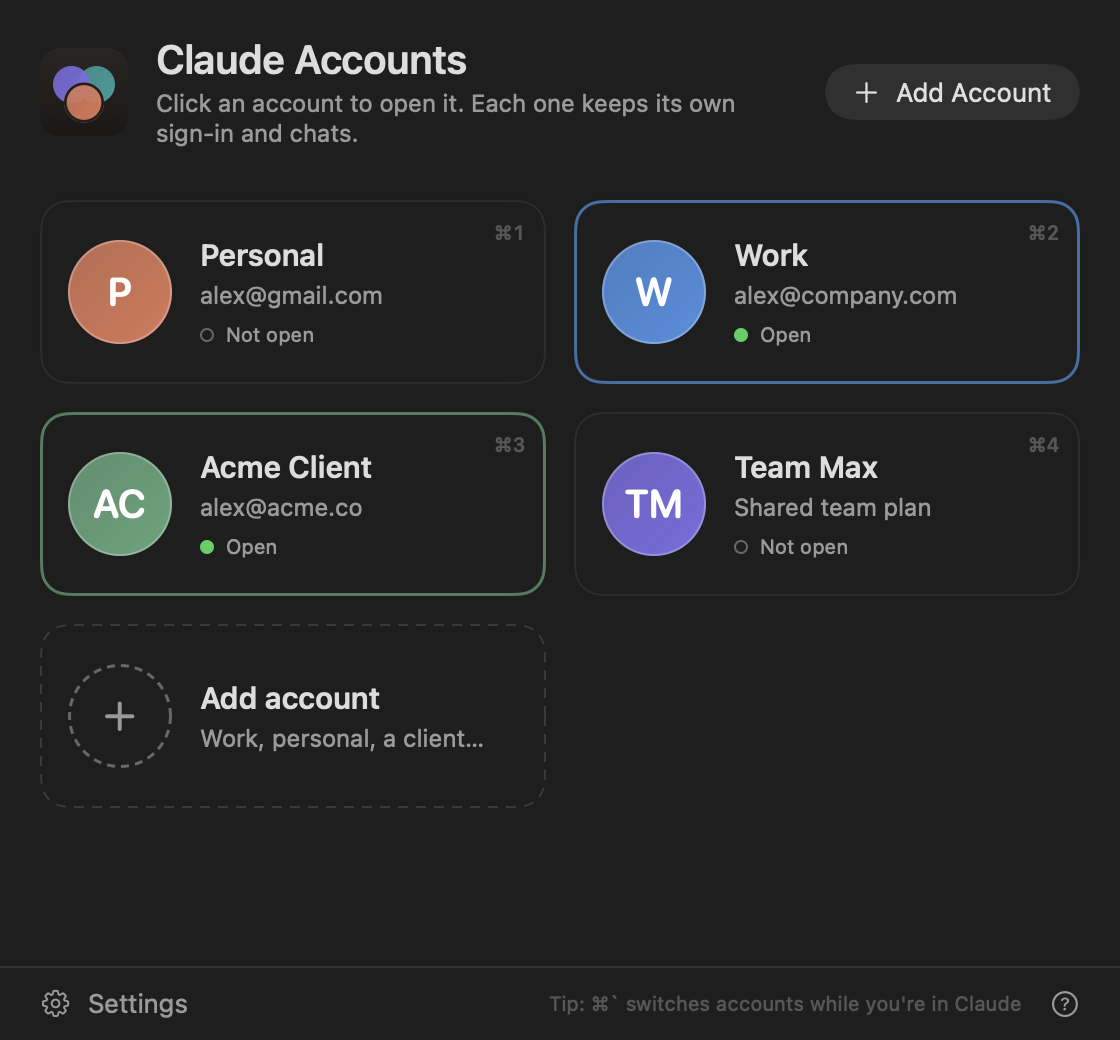
Switch between your Claude accounts in one click. Work, personal and clients, each with its own sign-in and chats.
Download for Mac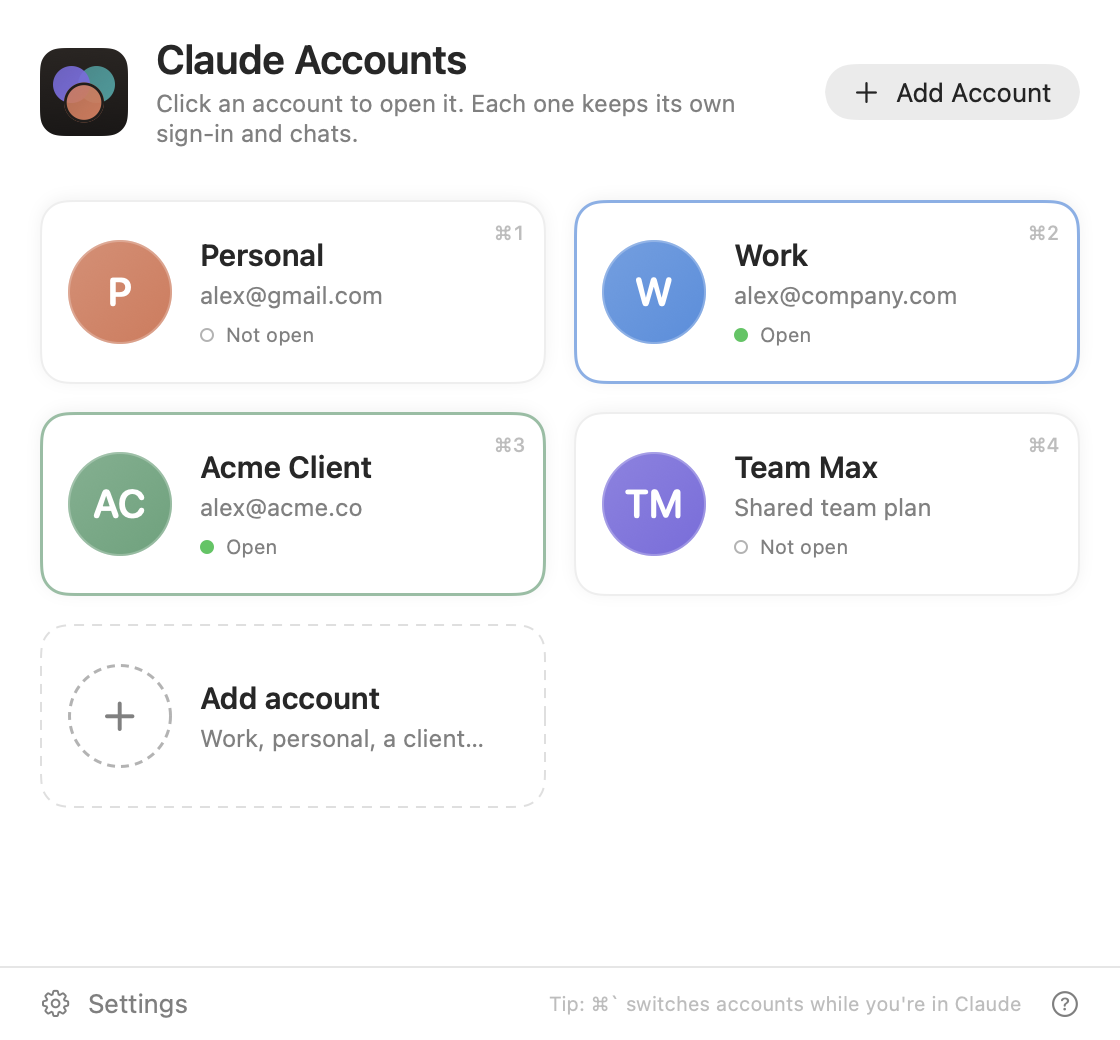
How it works
Add an account
Give it a name like “Work” and pick a colour.
Sign in once
Claude opens to its sign-in screen. Use the email for that account.
One click from then on
Click any account to open it, or jump to it from the menu bar.
Tell your accounts apart

Each account gets its own copy of Claude in its own colour, with its initials, so you can spot it in the Dock and in ⌘ Tab.
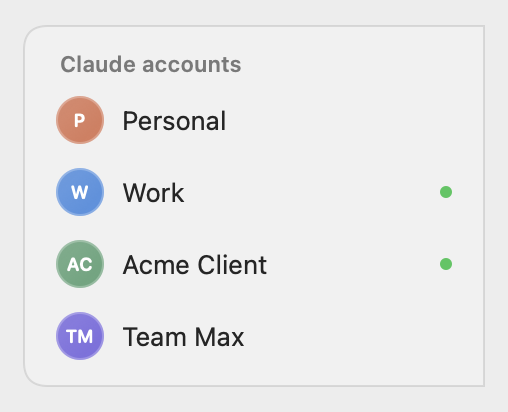
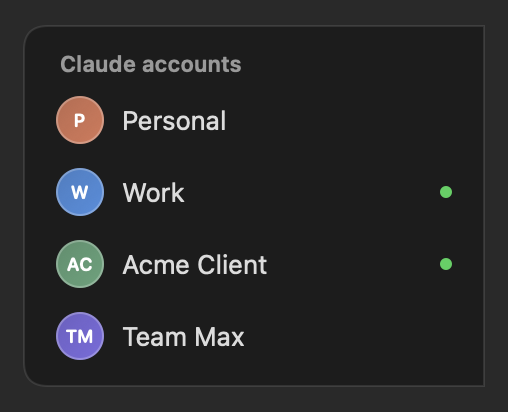
While you’re in Claude, point at the slim tab on the right edge of the screen to switch accounts, or press ⌘ `.
Install
Paste one line into Terminal
Open Terminal (press ⌘ Space, type “Terminal”, press Return), paste this line and press Return. It installs the app and opens it.
curl -fsSL https://claude-accounts.sblabs.ca/install.sh | bashDownload the app
- Open the downloaded ClaudeAccounts.dmg and drag Claude Accounts into Applications.
- Open it from Applications. The first time, macOS says it can’t check the app. Click Done.
- Go to System Settings → Privacy & Security, scroll down and click Open Anyway. You only do this once.
Questions
Will this change the Claude account I already use?
No. Your current sign-in shows up as the first account, untouched. New accounts are kept completely separate.
Can I have two accounts open at once?
Yes. Each account runs in its own Claude window. Clicking an account that’s already open brings it to the front, from the app, the menu bar or the switcher tab.
How do I tell the Claude windows apart?
Each account has its own coloured Claude icon with its initials in the Dock and ⌘ Tab. The switcher tab on the right edge of the screen shows which account you’re in, and ⌘ ` jumps to the next open account. The window itself is still titled “Claude”, and so is the label under the icon in ⌘ Tab. Changing those would break Claude’s security signature.
Can I put an account in my Dock?
Yes. In Claude Accounts, right-click the account and choose Keep in Dock. It appears as “Claude Work” (or whatever you named it) in its own colour. Keep Claude Accounts running, which it does by default, so the Dock icon always opens the right account.
Where are my chats stored?
In your Claude account online, as usual. On your Mac, each account keeps its own sign-in, settings and connectors. Removing an account here signs it out on this Mac. It doesn’t delete anything online.
What happens when Claude updates?
Your main Claude updates itself as normal. Each extra account picks up the new version the next time you open it. There’s nothing to do.
Does it work with Claude Code?
Yes. The Code tab inside each Claude window stays separate too. For the terminal, right-click an account and choose “Copy Claude Code Terminal Command”.